Khimera: Profile and Lair
When you first get a Khimera, it will be housed in a place called your Lair. All newly born and purchased khimeras will automatically go to your "Unsorted" lair group, which is the default lair group--unless you set a different lair to your default for khimeras to go. (We'll get to that in just a moment, though.) At the top of your Lair, you will see different links to click.
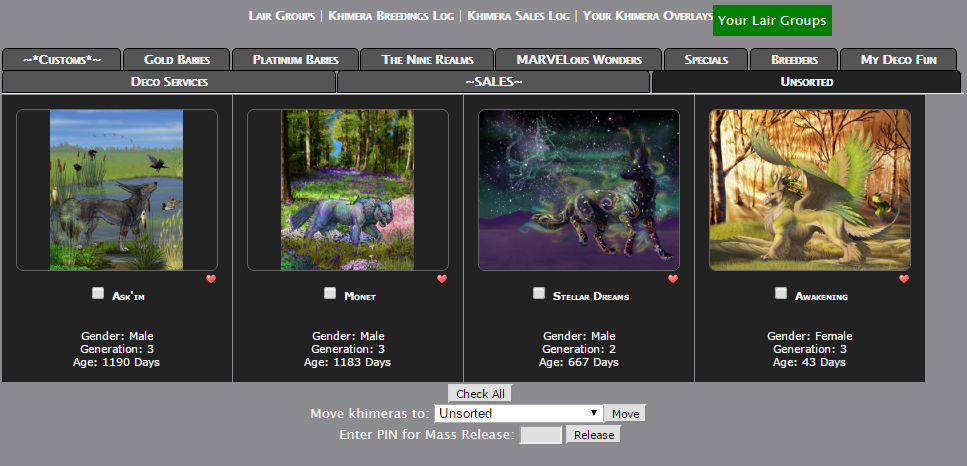
Lair Groups
This is where you can set up different lair groups to organize your khimeras however you want.
At the bottom of the page, you will see a little box like this:
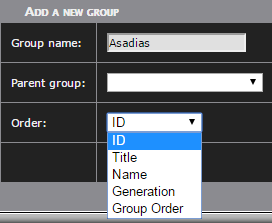
This is how you create new Lair groups. You can name them whatever you want. The given example, "Asadias", would be if you wanted to sort all of your asadia khimeras into one lair group. If you look at the drop-down menu, you can organize them by their Khimera ID Number (which is the string of numbers at the end of their profile URL), Name (whatever name you give the khimera; this will sort them alphabetically by name), Title (description you add under the khimera's name in their profile; this will also sort them alphabetically), Generation (Gen1/custom khimera, gen2, gen 3, etc.), and Group Order (which we'll get to shortly). Once you have decided on how you want to organize that lair, click "Save" and voila! You now have a new lair group!
Lair Groups (Cont'd.)
Once you have created a new lair group, you will see something like the following:
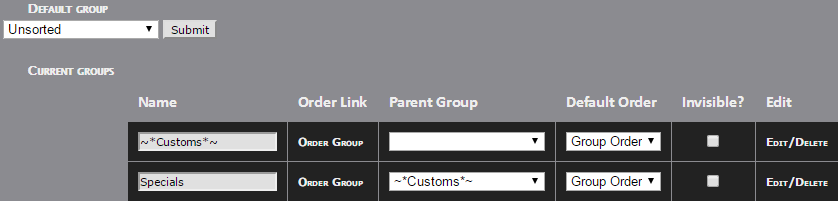
We're going to jump around a bit here, so you can learn how things work in a way that's more understandable.
Parent Group
Say you went and created that Asadia Lair group. Have a different type of asadia khimera, such as a Panthira or Qilin-Asadia, and want to keep them separated but within that same main Asadia group? This is where you do exactly that. Click on the drop-down menu, and simply select whichever lair group you want that sub-group to be under. (In the example, the parent group is "~*Specials*~", and the "Specials" sub-group is placed into the parent group "~*Customs*~".
Default Order
You've probably already done this part when creating a new Lair group, but to reiterate: This is where you organize your khimeras by ID number, Name, Title, Generation, or Group Order.
Group Order
If you have decided to try out this feature, this is where you can custom organize the order in which your khimeras appear in the lair. Once you have saved the change to Group Order, simply click on "Order Lair Group" (to the left of the Parent Group box, under "Order Link"), and it will take you to that lair. There, you can drag and drop khimeras to whichever order you want, regardless of their name, generation, etc.. Once you have them organized the way you prefer, simply click "Save this order".
Invisible?
This feature allows you to hide Lairs from view of other users. this can be changed at any time, and can be done for each and every individual lair group. Simply check/uncheck the box, and hit Save at the bottom of the page. (While other users will not be able to view Invisible/Hidden lairs, you will still be able to!)
Edit/Delete
Here, you can add a description to your lairs! Want to let others know that khimeras in this lair are not available for breeding? Tell them here! Want to add a story for the lair group? Tell it here! Want to delete a Lair group? You can also do it here! As the notice states at the bottom of this page, all khimeras will be sent to your Unsorted/default lair group upon deletion of the group.
*Clicking on "Click here to edit your Unsorted" at the very top of the Lair Groups page will allow you to add a description to your Unsorted lair!*
Default Lair
At the top left of the page, you will see a drop-down menu for you "Default Group." You can set it to any lair group you have created, but all recently bred/purchased khimeras will go to this new lair once you save the change. The default group can also be changed at any time.
Khimera Profiles
When you click on the name of a khimera in your lairs, it will take you to the khimera's profile page. The profile page is pretty self-explanatory, but here are some of the features you can see and use on the profile page.
- Edit a khimera's name and title.
- View information on the khimera, such as Generation, Breed, and Alternate and Overlay information (if applicable).
- View the parents and offspring of the khimera, if any are present.
-View the genetics (patterns and variations) on the khimera.
Please see information on the Khimera Control Panel in the sub-entry below.
Lair Groups
This is where you can set up different lair groups to organize your khimeras however you want.
At the bottom of the page, you will see a little box like this:
This is how you create new Lair groups. You can name them whatever you want. The given example, "Asadias", would be if you wanted to sort all of your asadia khimeras into one lair group. If you look at the drop-down menu, you can organize them by their Khimera ID Number (which is the string of numbers at the end of their profile URL), Name (whatever name you give the khimera; this will sort them alphabetically by name), Title (description you add under the khimera's name in their profile; this will also sort them alphabetically), Generation (Gen1/custom khimera, gen2, gen 3, etc.), and Group Order (which we'll get to shortly). Once you have decided on how you want to organize that lair, click "Save" and voila! You now have a new lair group!
Lair Groups (Cont'd.)
Once you have created a new lair group, you will see something like the following:
We're going to jump around a bit here, so you can learn how things work in a way that's more understandable.
Parent Group
Say you went and created that Asadia Lair group. Have a different type of asadia khimera, such as a Panthira or Qilin-Asadia, and want to keep them separated but within that same main Asadia group? This is where you do exactly that. Click on the drop-down menu, and simply select whichever lair group you want that sub-group to be under. (In the example, the parent group is "~*Specials*~", and the "Specials" sub-group is placed into the parent group "~*Customs*~".
Default Order
You've probably already done this part when creating a new Lair group, but to reiterate: This is where you organize your khimeras by ID number, Name, Title, Generation, or Group Order.
Group Order
If you have decided to try out this feature, this is where you can custom organize the order in which your khimeras appear in the lair. Once you have saved the change to Group Order, simply click on "Order Lair Group" (to the left of the Parent Group box, under "Order Link"), and it will take you to that lair. There, you can drag and drop khimeras to whichever order you want, regardless of their name, generation, etc.. Once you have them organized the way you prefer, simply click "Save this order".
Invisible?
This feature allows you to hide Lairs from view of other users. this can be changed at any time, and can be done for each and every individual lair group. Simply check/uncheck the box, and hit Save at the bottom of the page. (While other users will not be able to view Invisible/Hidden lairs, you will still be able to!)
Edit/Delete
Here, you can add a description to your lairs! Want to let others know that khimeras in this lair are not available for breeding? Tell them here! Want to add a story for the lair group? Tell it here! Want to delete a Lair group? You can also do it here! As the notice states at the bottom of this page, all khimeras will be sent to your Unsorted/default lair group upon deletion of the group.
*Clicking on "Click here to edit your Unsorted" at the very top of the Lair Groups page will allow you to add a description to your Unsorted lair!*
Default Lair
At the top left of the page, you will see a drop-down menu for you "Default Group." You can set it to any lair group you have created, but all recently bred/purchased khimeras will go to this new lair once you save the change. The default group can also be changed at any time.
Khimera Profiles
When you click on the name of a khimera in your lairs, it will take you to the khimera's profile page. The profile page is pretty self-explanatory, but here are some of the features you can see and use on the profile page.
- Edit a khimera's name and title.
- View information on the khimera, such as Generation, Breed, and Alternate and Overlay information (if applicable).
- View the parents and offspring of the khimera, if any are present.
-View the genetics (patterns and variations) on the khimera.
Please see information on the Khimera Control Panel in the sub-entry below.
| Sub-Entries | ||
|---|---|---|
| - | Khimera: Profile Control Panel | Explains the Control Panel |